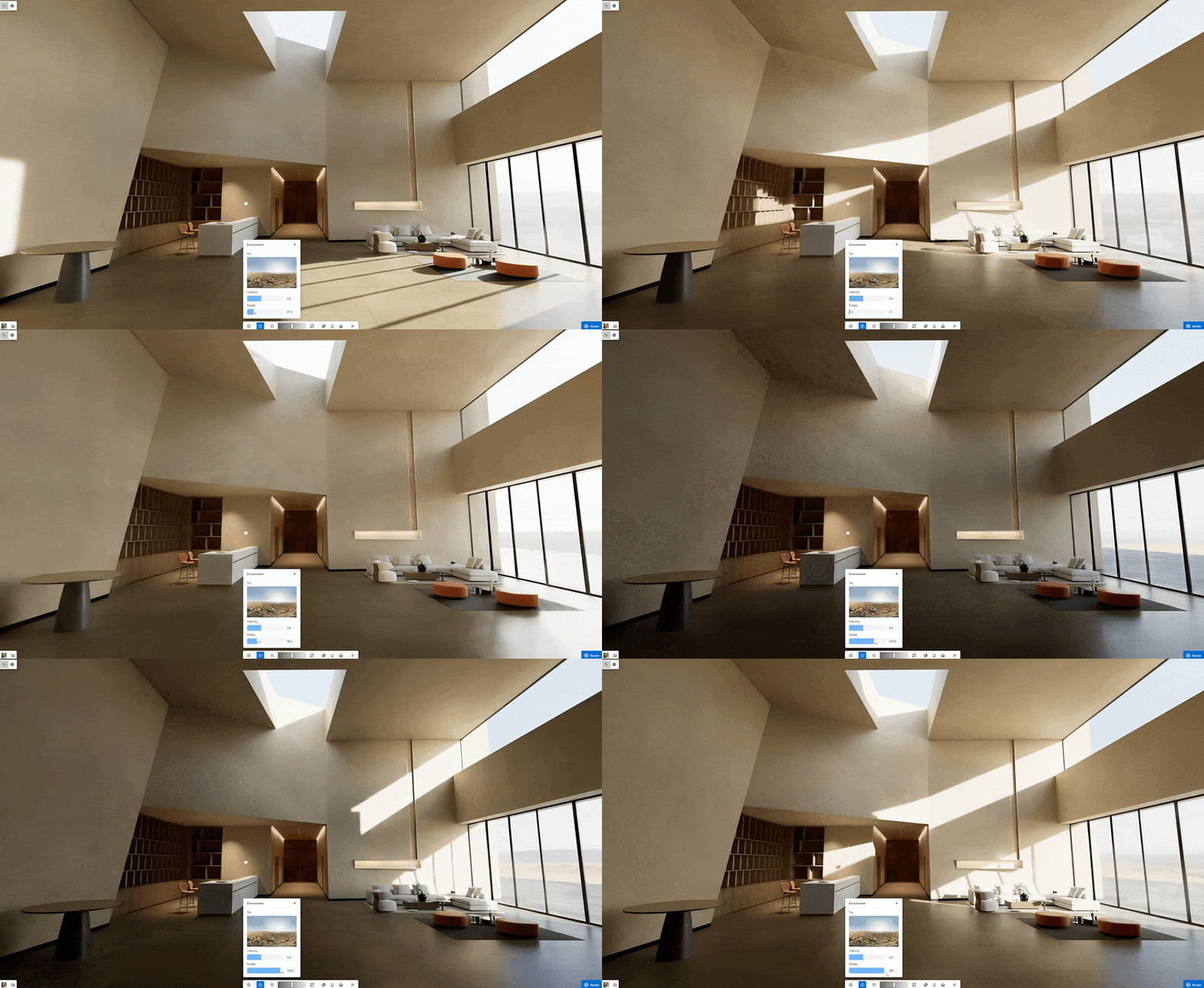
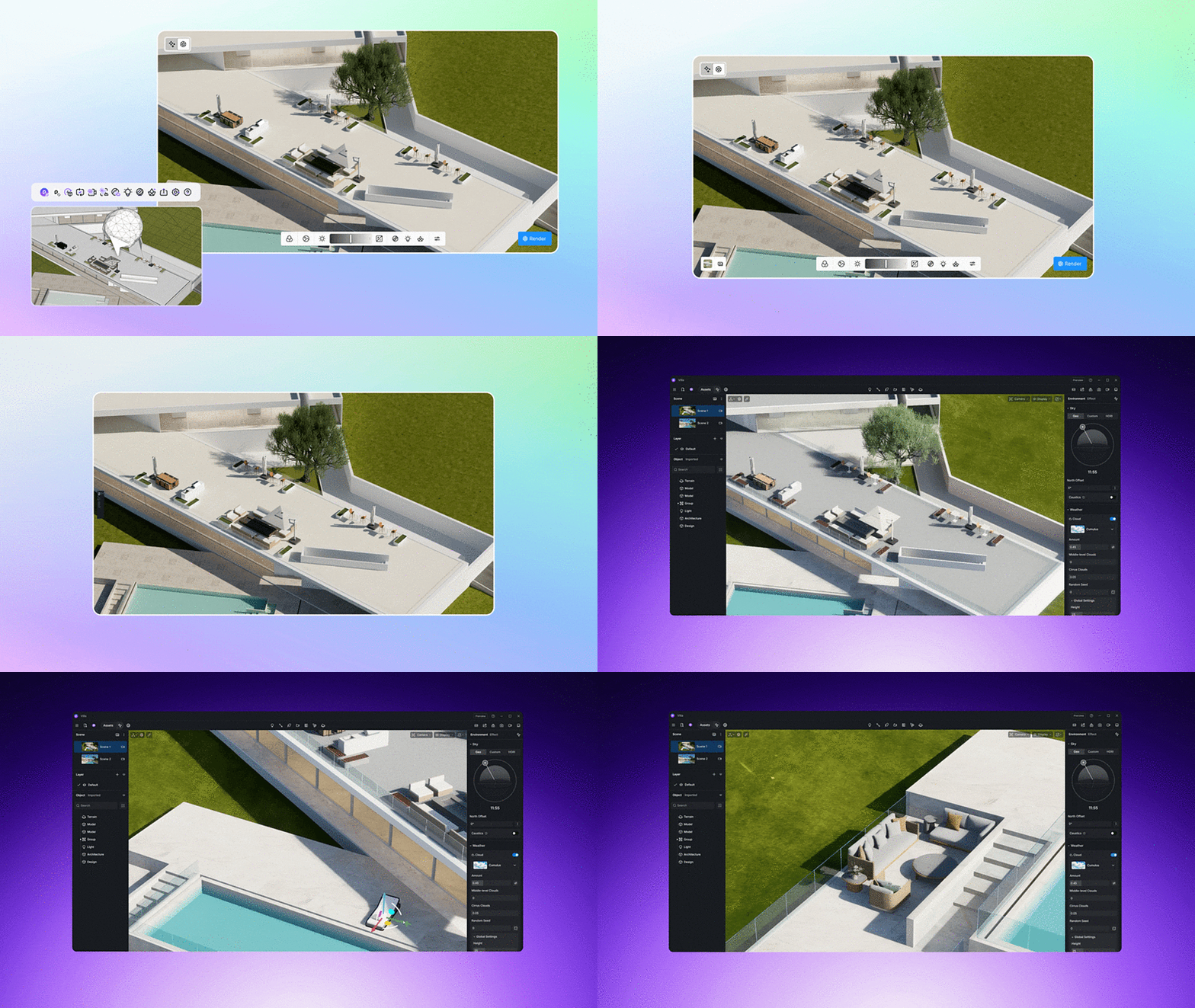
With D5, architects can bring their models to life directly inside SketchUp through a seamless real-time visualization workflow. D5 Lite enhances the modeling experience by combining AI-assisted image generation with physically based rendering tools for immediate visual feedback. This guide shows you how to visualize architectural concepts in SketchUp using D5 Lite for faster design exploration, clearer communication, and more intuitive decision-making.
The Challenge of Early-Stage Visualization
Architectural projects often begin as simple massing studies that define form but lack materiality and atmosphere. This can make early design discussions abstract and harder for clients to interpret. At the same time, exploring multiple design directions requires quick visual feedback—something traditional rendering workflows don’t always support efficiently.
1. Visualize in Real Time While Modeling
D5 Lite allows you to evaluate your design without leaving SketchUp.
- Open the plugin directly within your modeling workspace
- View your model in a synchronized real-time rendering window
- Continue editing geometry while instantly seeing visual updates
This integrated workflow supports continuous visualization from early concepts to refined designs.
2. Install and Launch D5 Lite
Set up the plugin and start visualizing quickly.
3. Choose Between AI and Render Modes
D5 Lite offers two flexible visualization approaches depending on your needs.
 |
| D5 Lite - Tweaking AI Prompt |
- AI Mode: Generate conceptual images and explore design styles
- Render Mode: View and refine your model in real time
Switch between modes at any stage of the project to support both ideation and refinement.
4. Generate AI-Assisted Concept Images
Use AI to quickly explore different architectural directions.
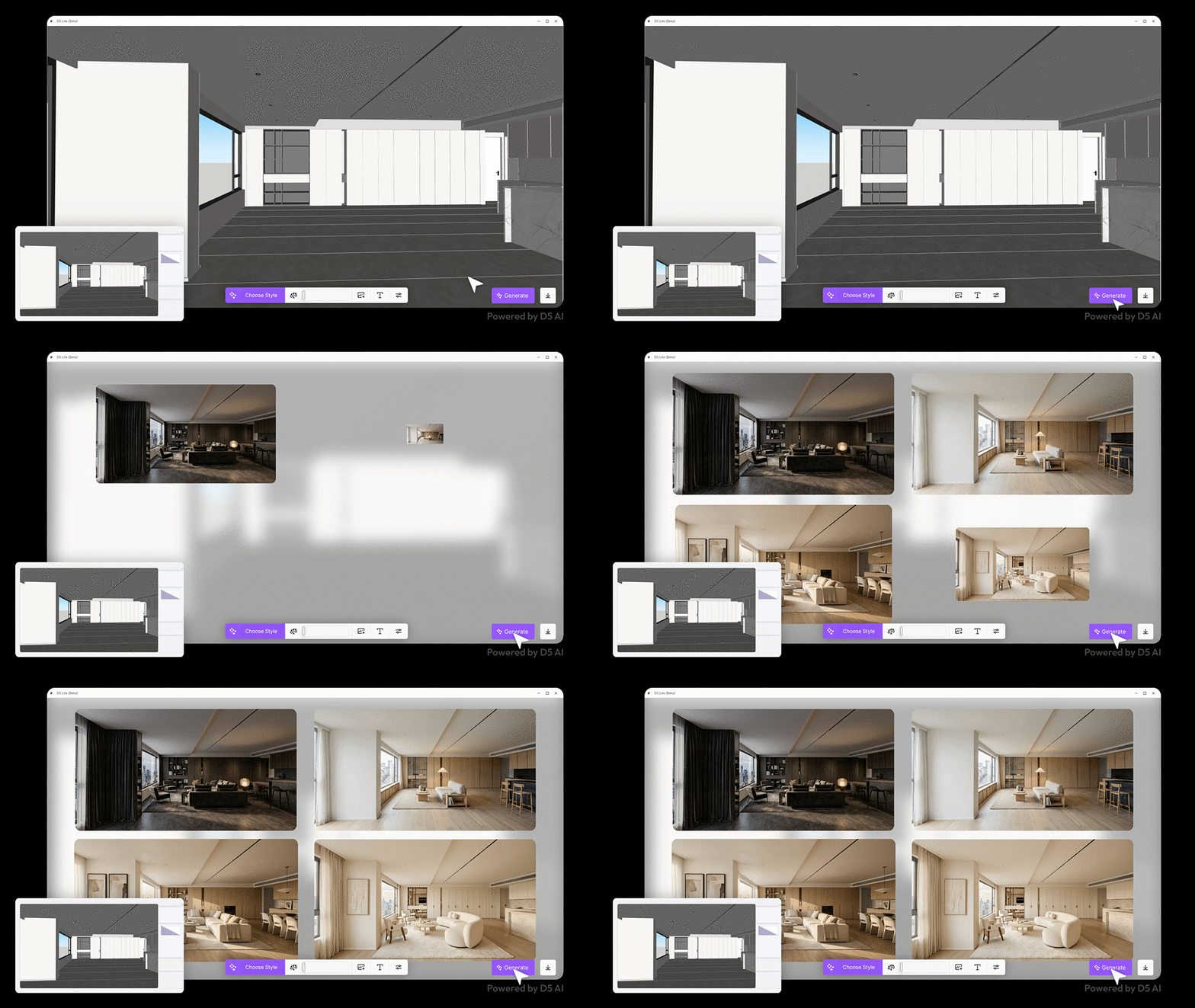 |
| D5 Lite for Early Concept Exploration |
- Select a style (architecture, interior, landscape)
- Adjust parameters like structure weight and creativity
- Add prompts or reference images for more control
- Generate multiple variations from a single model view
This is ideal for early-stage exploration and client presentations.
5. Refine the Scene in Real Time
Switch to Render Mode to develop your design further.
 |
| Rendering with D5 Lite |
- Navigate the model interactively while editing
- Keep geometry, materials, and cameras synchronized
- Evaluate spatial composition instantly
6. Adjust Lighting and Environment
Lighting plays a key role in how a design is perceived.
- Apply HDRI skies for realistic environmental lighting
- Adjust exposure, contrast, and color temperature
- Test different times of day and atmospheres
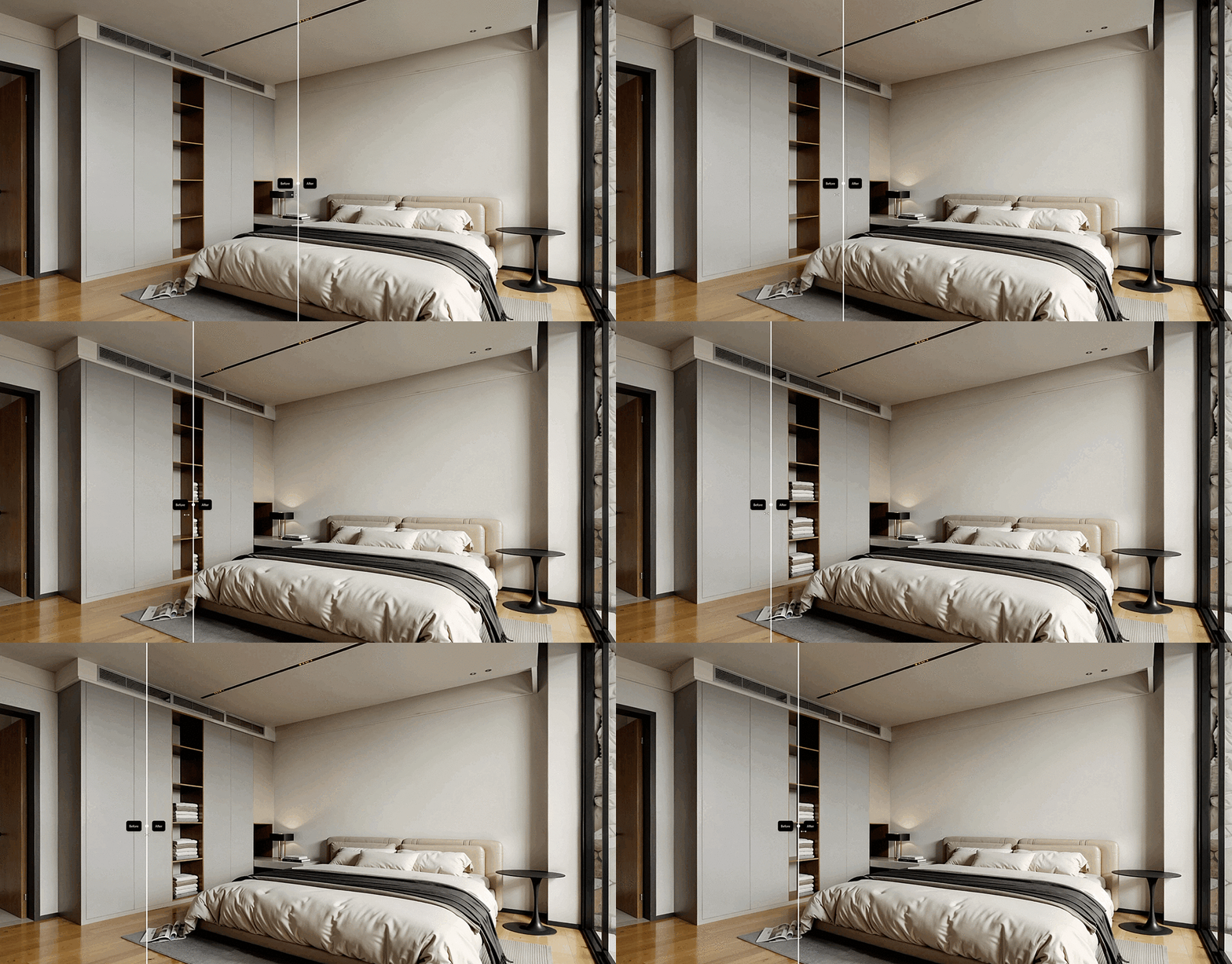
7. Apply Materials and Fine-Tune Details
Enhance realism with physically based materials.
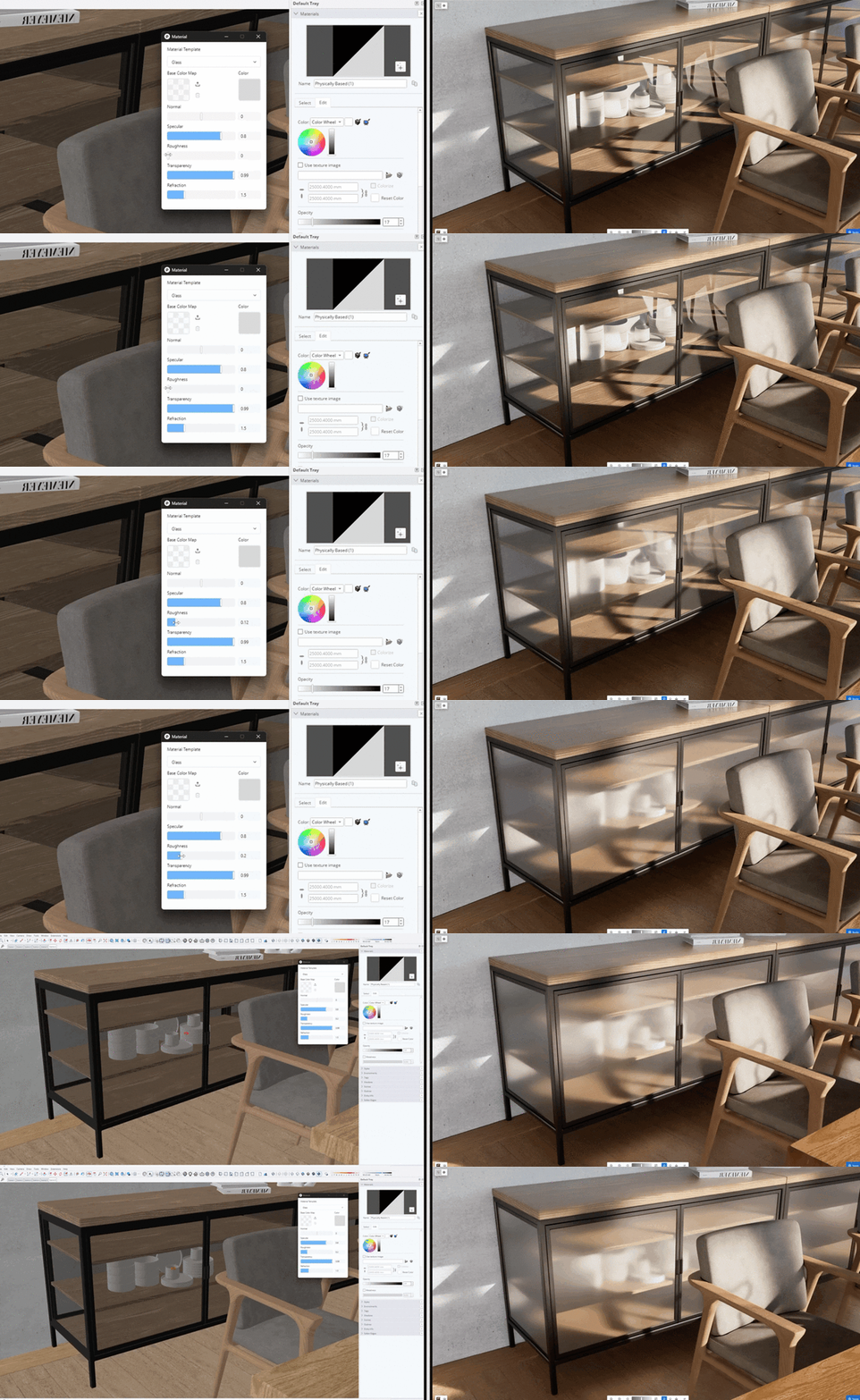 |
| Glass Material Editing on D5 Lite |
- Use templates like glass, metal, water, or grass
- Adjust roughness, reflection, and transparency
- See updates instantly in the viewport
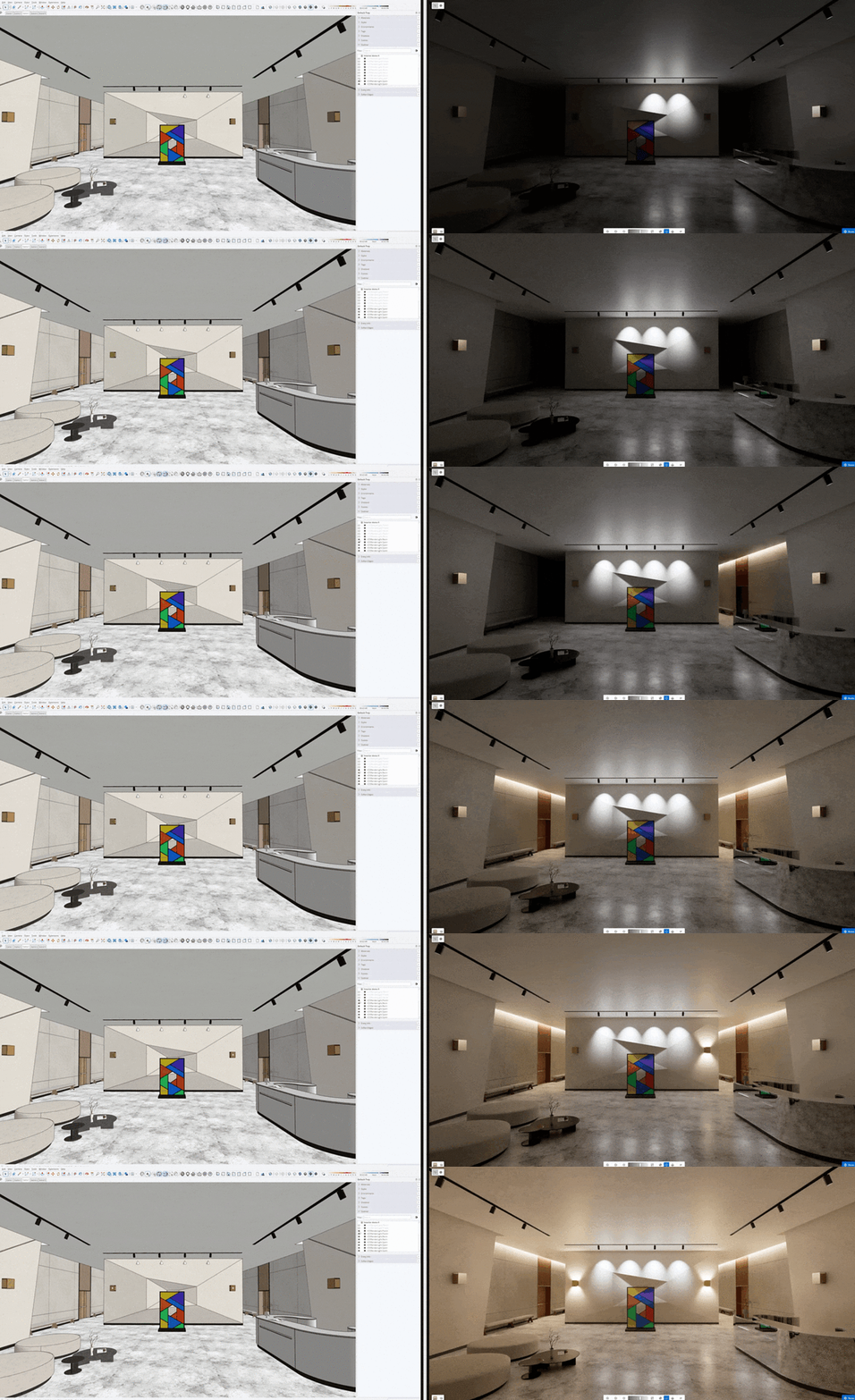 |
| Lighting on D5 Lite |
Add artificial lighting such as point, spot, or strip lights to refine the scene further.
8. Add Context with Lightweight Assets
Bring scale and life to your project with minimal effort.
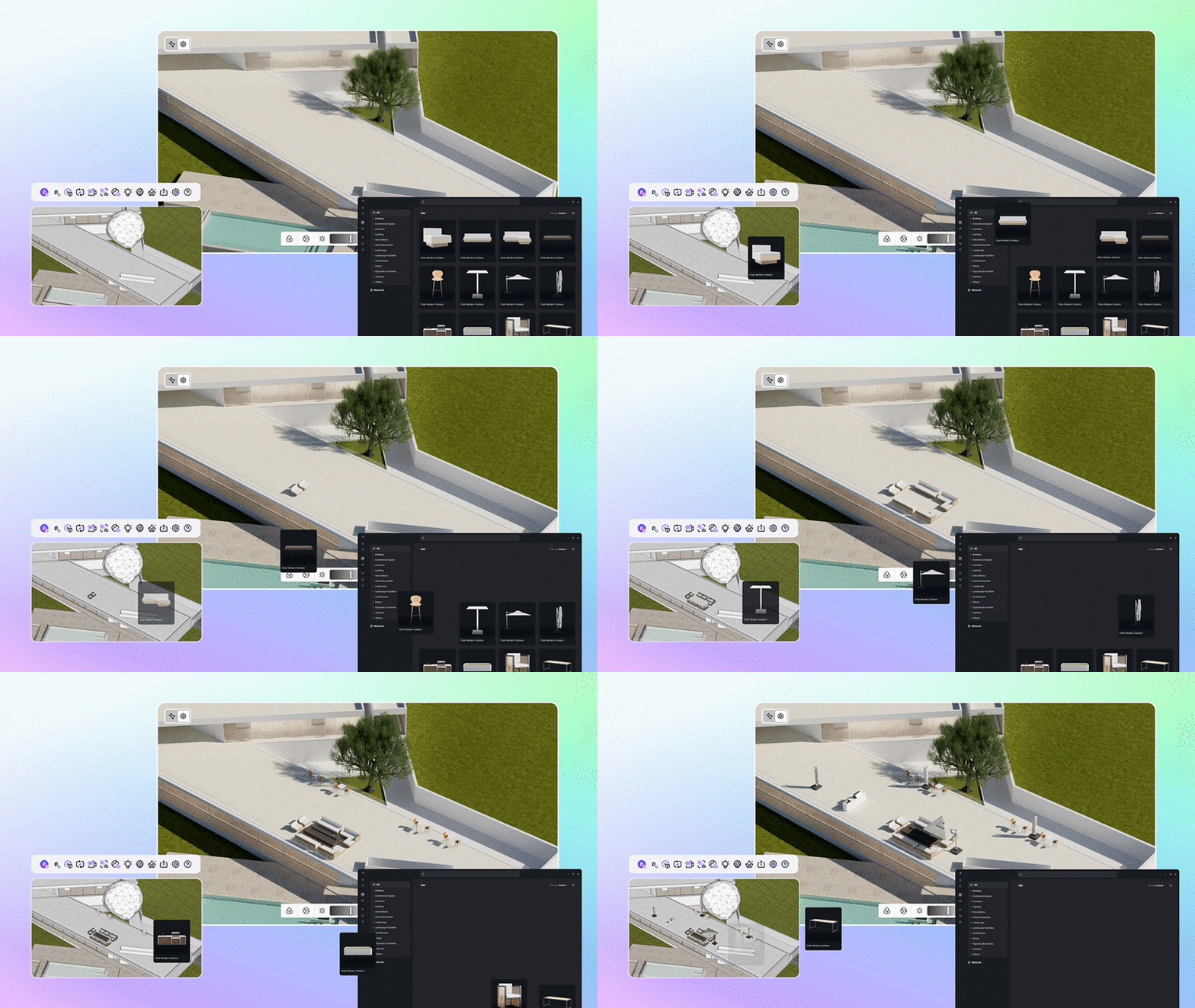 |
| Adding assets to D5 Lite |
- Drag and drop vegetation and objects into the scene
- Use proxy assets in SketchUp for performance
- View high-quality versions in the render window
9. Export Images Instantly
Create visuals directly from your working scene.
 |
| Done in 2 ways: export D5 Lite result or send to D5 Render |
- Export images from the real-time viewport
- Adjust resolution, format, and aspect ratio
- Skip traditional rendering steps
10. Continue in D5 Render for Advanced Outputs
For presentations and animations, move seamlessly into D5 Render.
- Transfer scenes with materials, lights, and assets intact
- Add animations, camera paths, and cinematic effects
- Produce high-end visualizations and walkthroughs
- Watch the Workflow in Action
By integrating visualization directly into the modeling process, D5 Lite enables faster iteration, clearer communication, and more informed design decisions from the very first stages of a project.